A curve that is nearly right
The anchors are where they belong and the arc between them is too tight. In an SVG path editor one handle, pulled further out, is the whole fix.

A path is a list of drawing commands, and every curve in it is controlled by two handles you can grab. Open a file, switch on node editing, and pull the outline into the shape you meant — the numbers in the path data follow.
Open an SVG file to start editing it here
Canvas: 0 x 0Objects: 0Grid: offNo selectionZoom: 100%Pointer: —, —
Properties
Select a shape on the canvas to change how it looks
Layers
Open a file to see its shapes here
Path editing runs entirely in this browser tab — the file is never uploaded, and nothing is stored on our side. Free, with no account.
Reviewed by SVGMaker TeamUpdated
What a path is made of
A path is one long string of letters and numbers. These are the commands you will actually meet, and what each one does to the pen.

How it works
To edit SVG paths online free of charge: open the file, select the path, turn on node editing, and drag. You can modify SVG path online without installing anything, and the path data updates as you go.
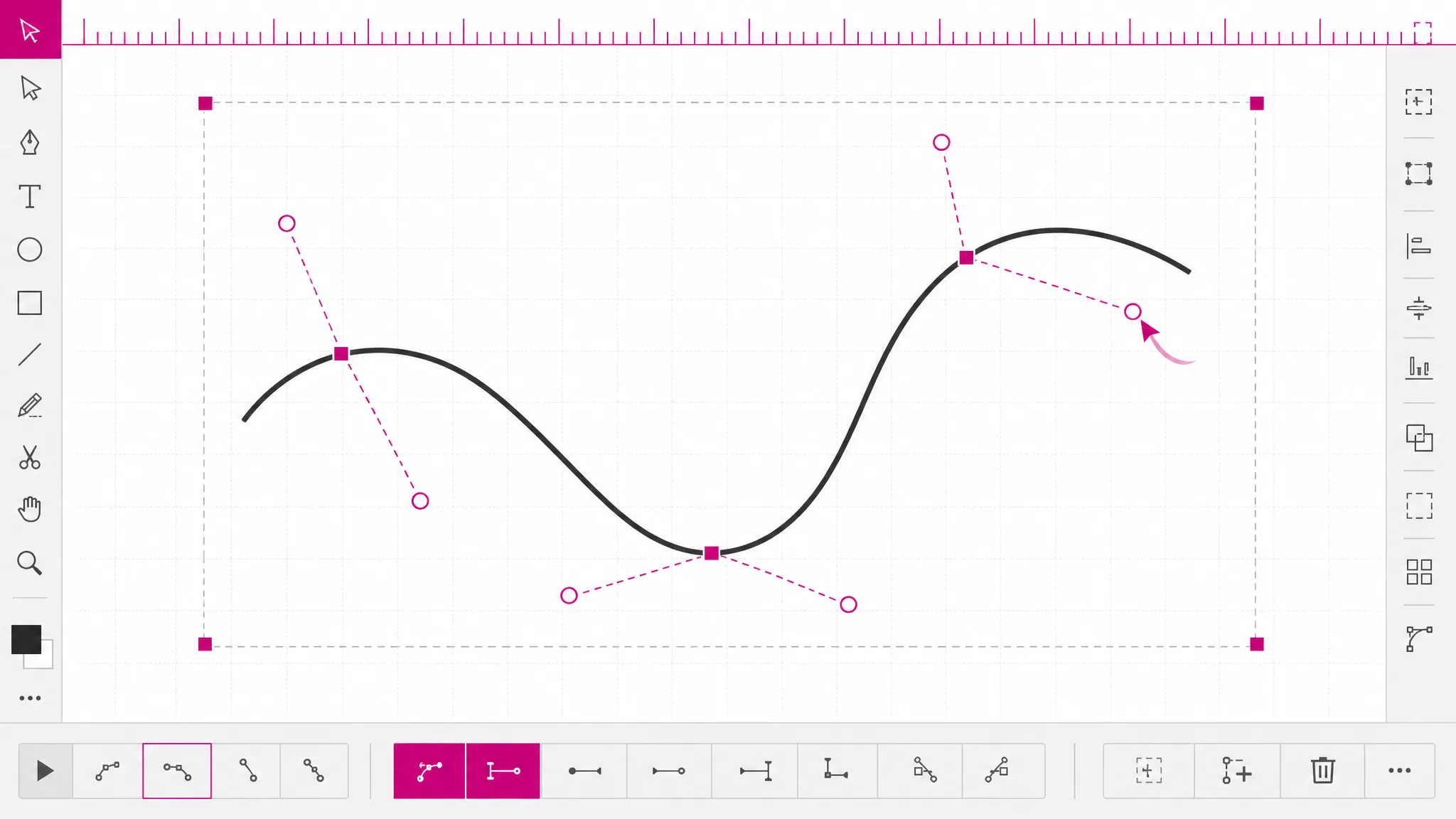
An SVG path editor only works on paths, so start by clicking the outline on the canvas. Only paths have editable nodes — a rectangle or a circle is described by its own attributes, not by drawing commands.
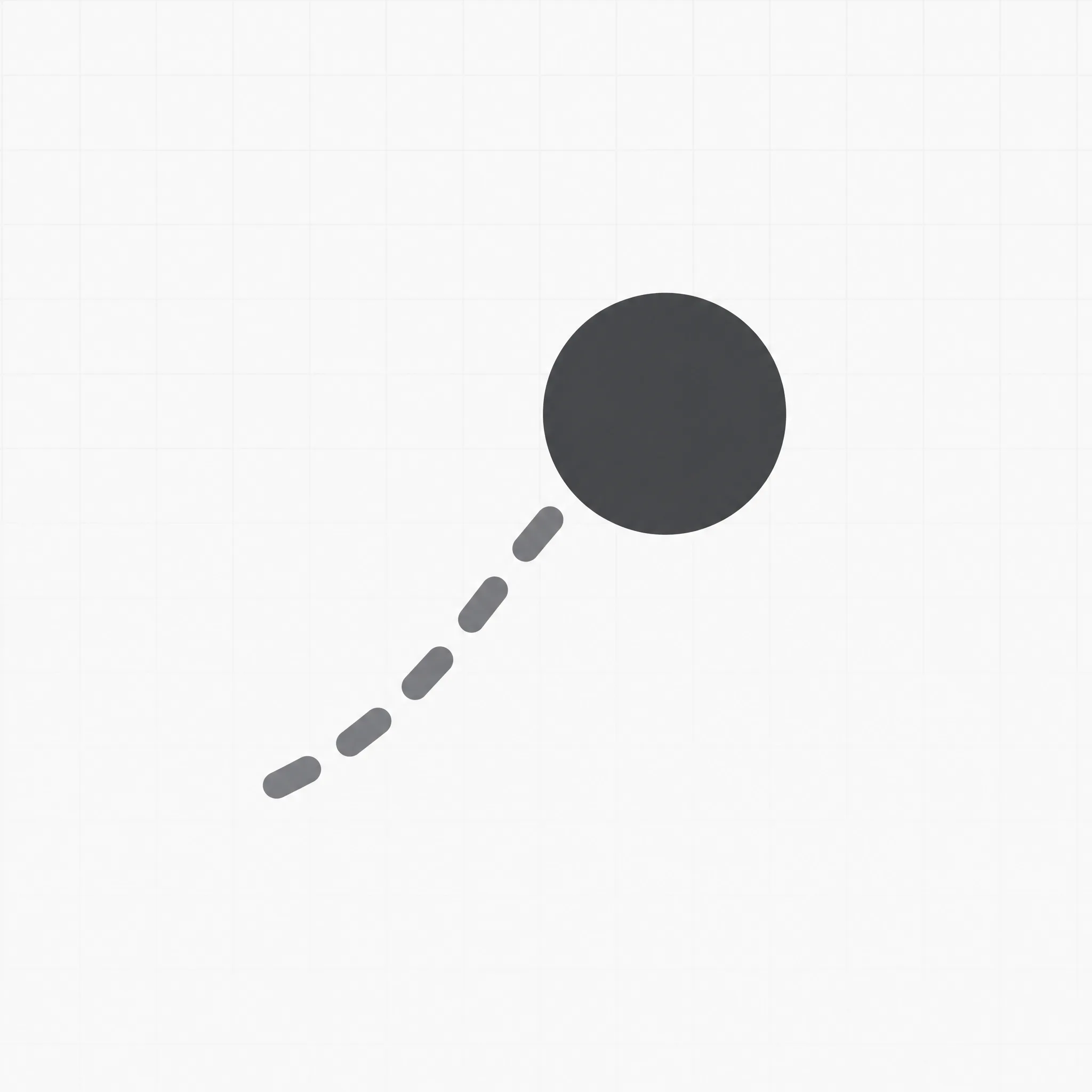
Squares appear at every anchor point along the outline, and each curved segment grows handles on dashed lines running back to the anchor they belong to.
Pull an anchor to move that point; pull a handle to change how the curve leaves it. Export when it looks right — the new coordinates are in the d attribute.
What it does
Every curved segment has an anchor at each end and one or two control points floating off them. The anchors are the outline itself — drag one and that point of the shape moves. The control points are never drawn: they only decide the direction the curve leaves an anchor and how far it pulls before it turns. That is why moving a handle can change a curve dramatically without moving any point that is actually on the shape, and it is the single idea that makes any svg bezier editor click.
Open a path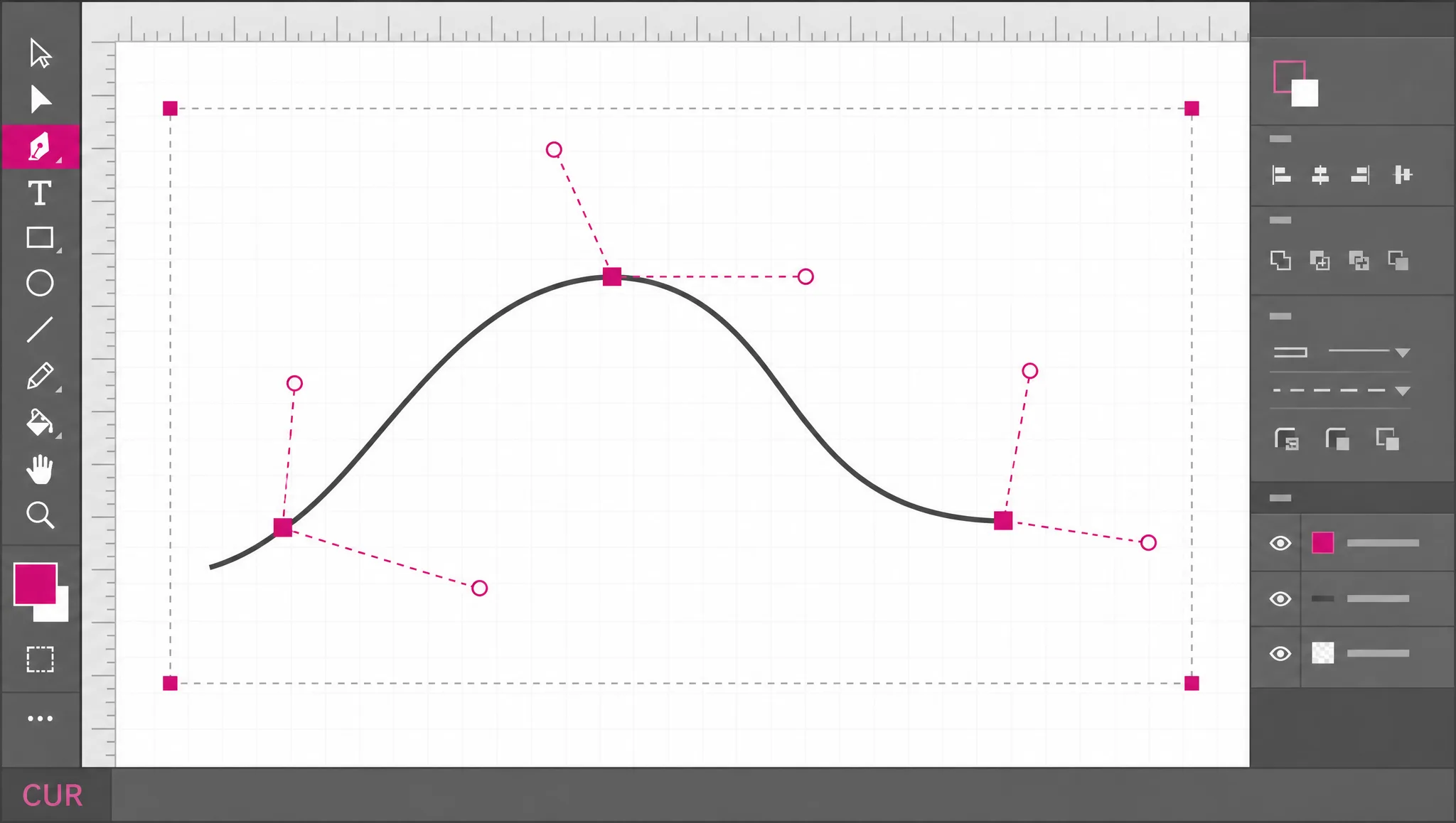
The distance of a control point from its anchor sets how strongly the curve is pulled in that direction. Short handles give a curve that leaves the anchor and turns quickly, which reads as tight and mechanical. Long handles give a slow, sweeping arc. Most bad-looking curves are not wrongly placed, they are wrongly weighted — and pulling one handle further out fixes more of them than moving anchors ever does.
Try a handle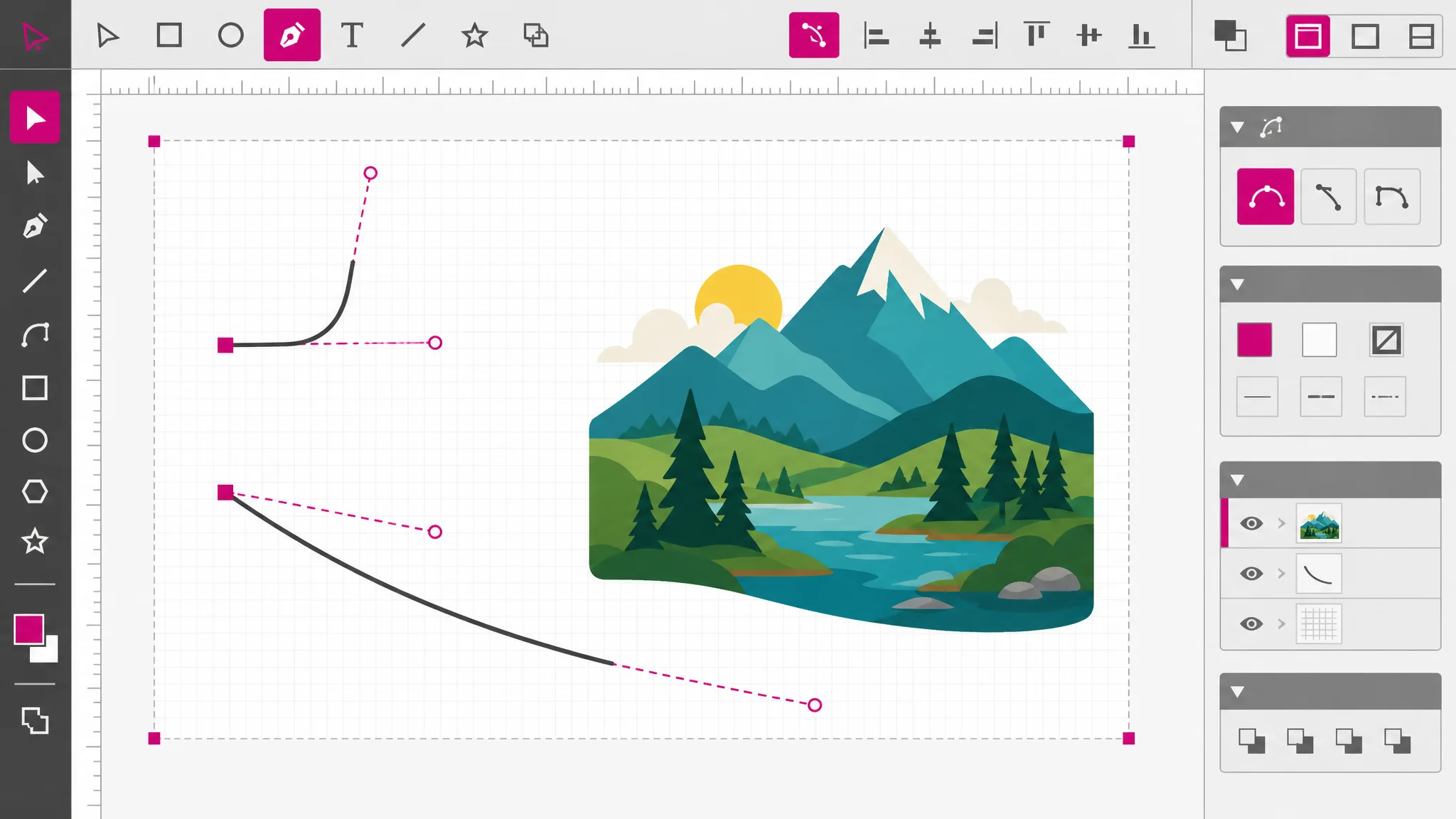
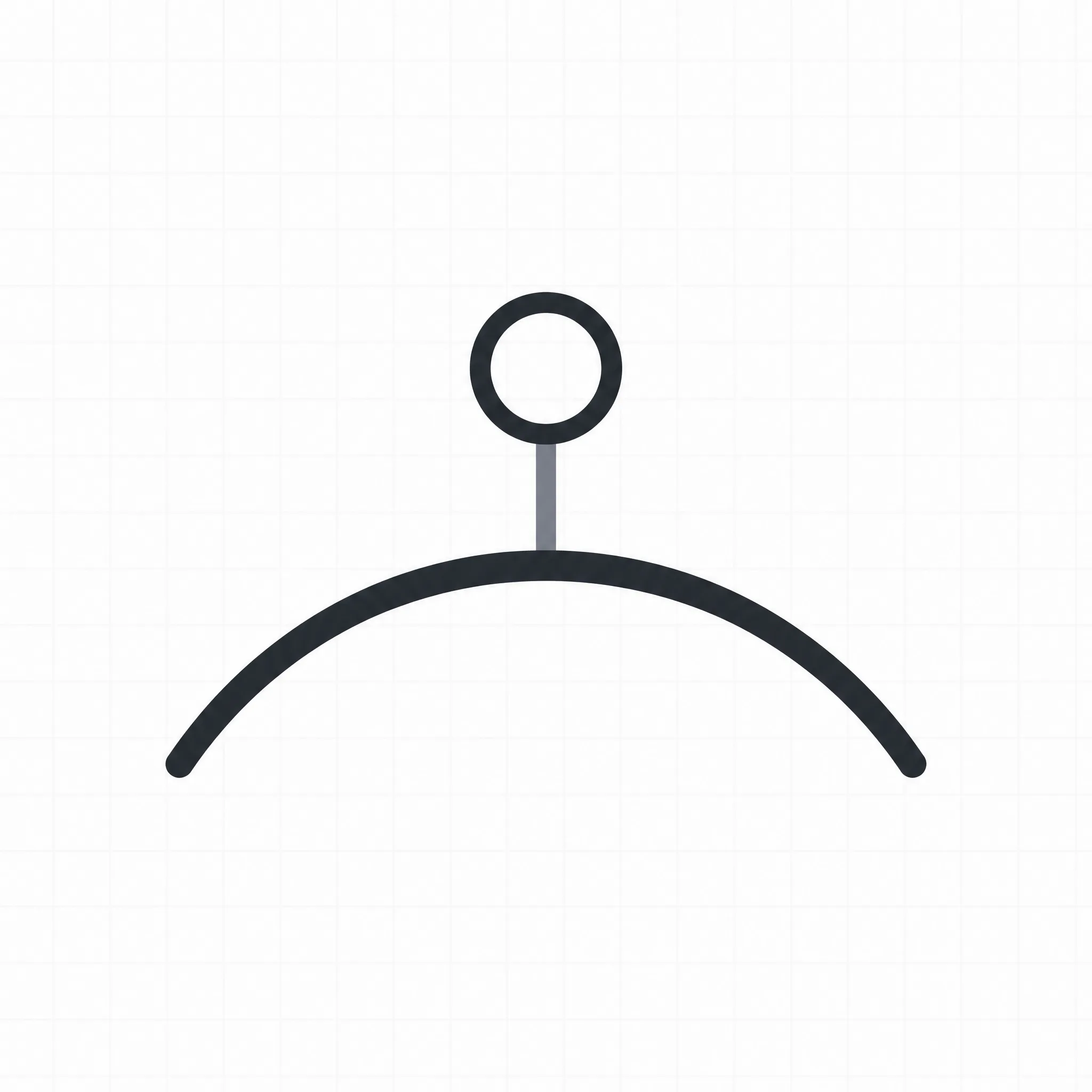
Where two curved segments meet, the join is smooth only if the incoming and outgoing control points sit on a straight line through the anchor. Break that alignment and you get a visible corner. This is worth knowing because it explains a whole class of complaints about traced artwork: the tracer places anchors correctly and leaves the handles unaligned, so the outline is covered in small kinks that no amount of moving anchors will remove.
See the joins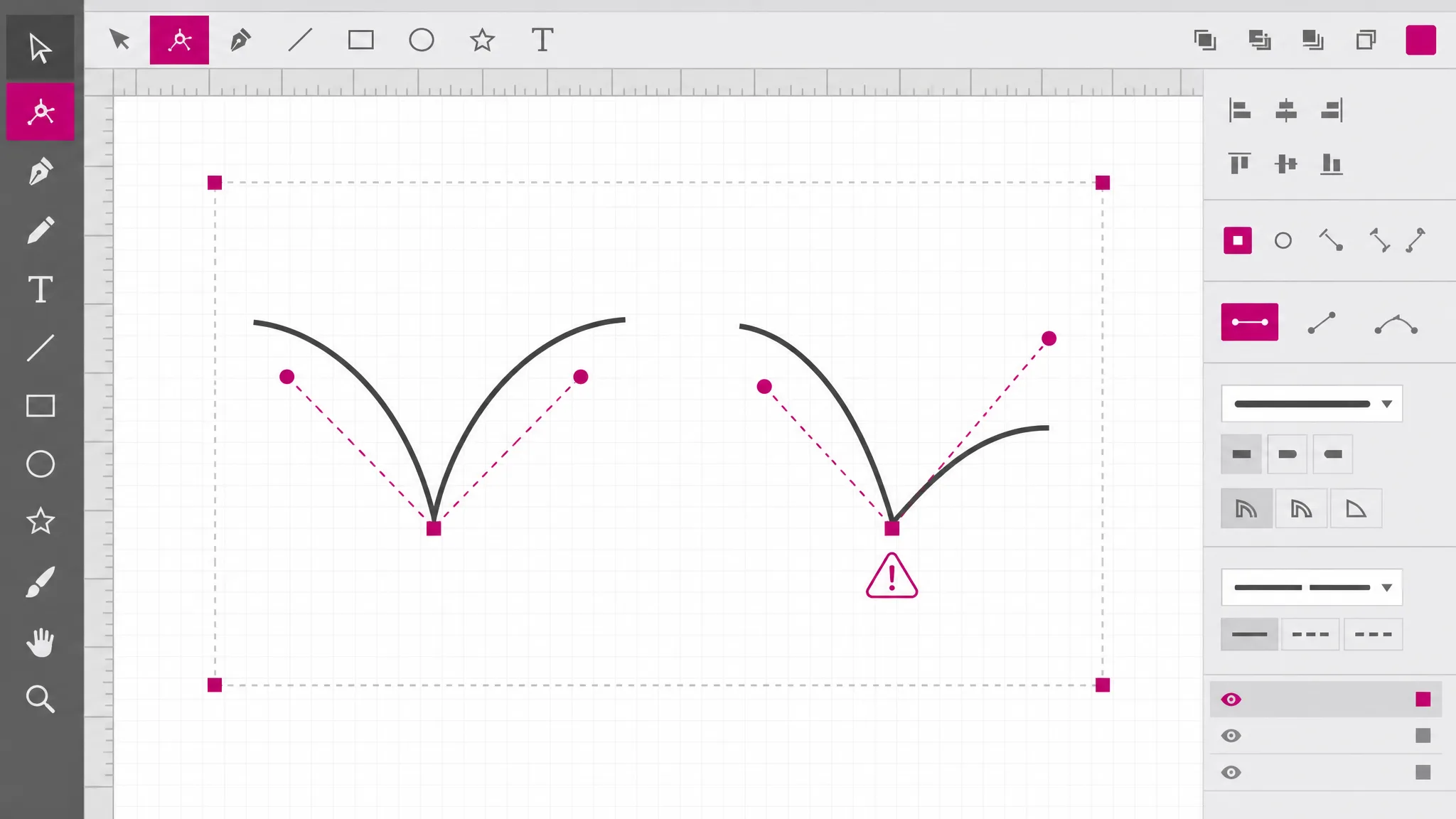
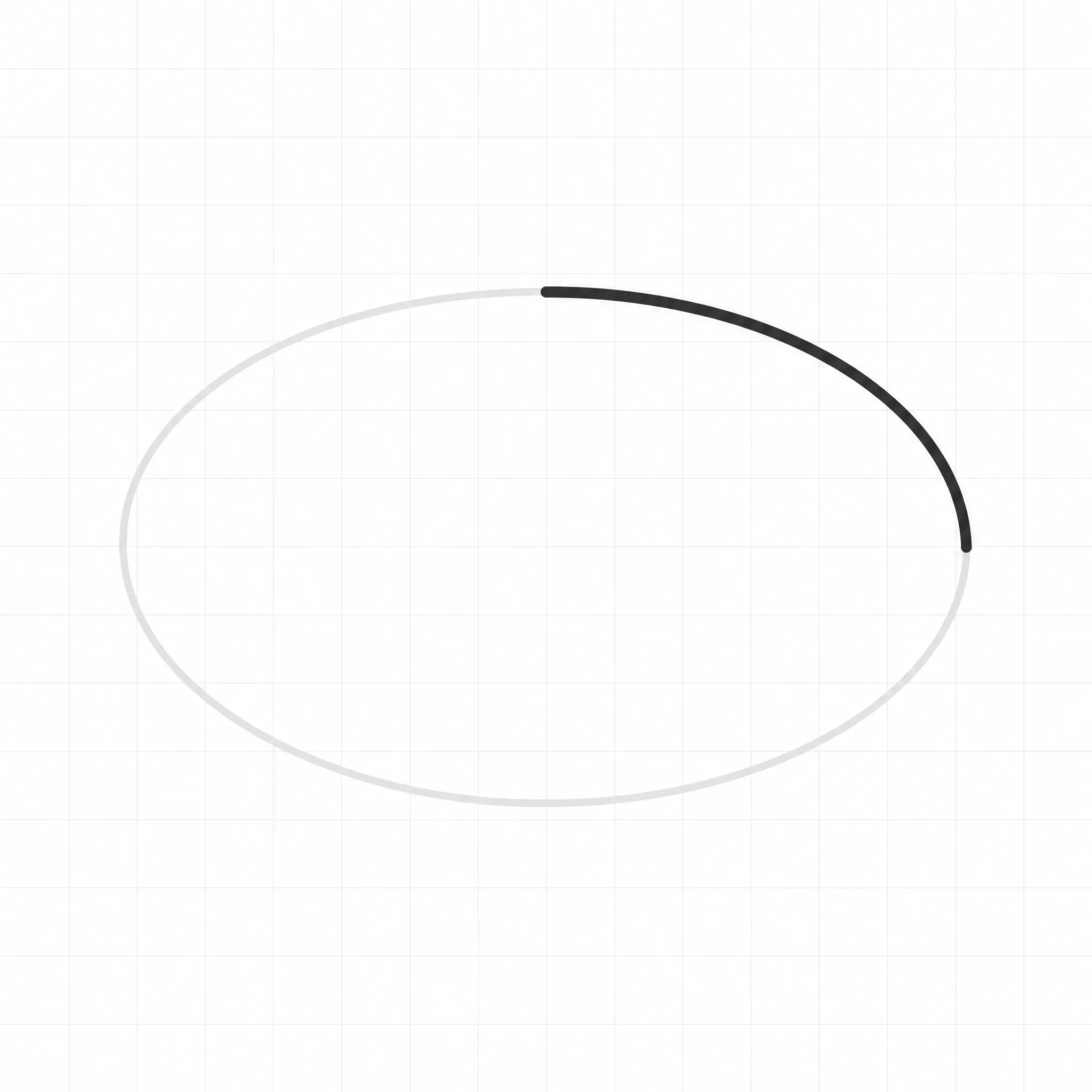
Dragging a node rewrites the coordinates in the path command itself, so what changes is the same d attribute the file ships with. That is the difference between reshaping a path and applying a transform to it: a transform wraps the original in a matrix and leaves the original numbers alone, while node editing changes the geometry. Export and the new numbers are there — which is also how you check that the edit did what you think it did.
Check the export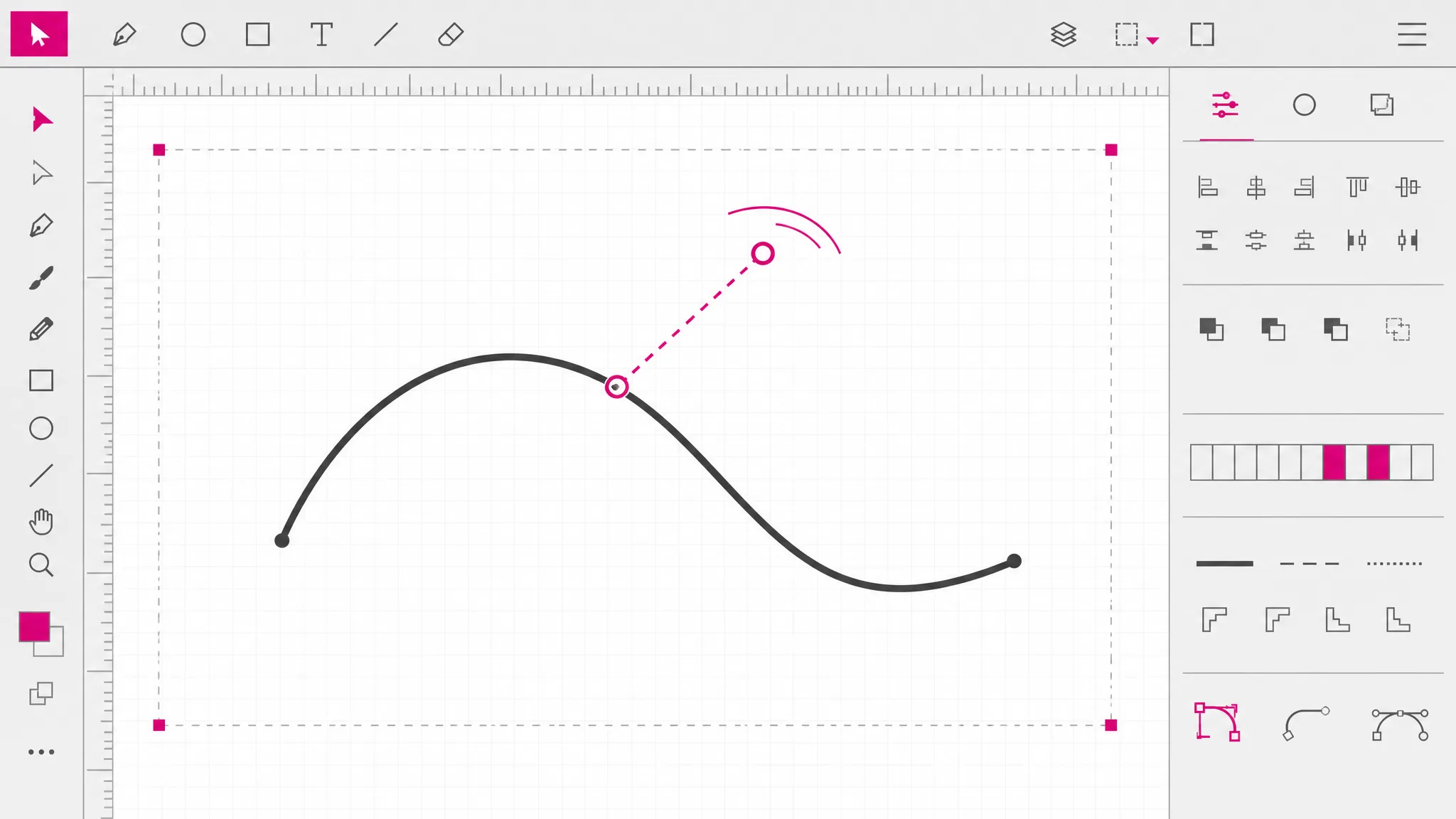
What you get
Every point on the outline becomes a square you can grab and move.
Cubic and quadratic segments show their control points on dashed lines back to the anchor they steer.
Dragging rewrites the coordinates in the command itself, so the exported d attribute carries the change.
Each drag is its own step, so exploring a curve is free and reversible.
Anything better typed than dragged is one page away in the code editor, on the same file.
The file is parsed and rewritten in this tab. Nothing is transmitted and nothing is stored.
When you need it
Not every vector job needs node editing. These are the ones where nothing else will do.
The anchors are where they belong and the arc between them is too tight. In an SVG path editor one handle, pulled further out, is the whole fix.
The tracer left the handles unaligned at a join. Bringing them back into line removes the corner without moving the shape.
A machine path has to clear an obstacle by a specific margin. Moving the anchors is the only way to change the geometry itself.
Type is all curves and joins. Reshaping a bowl or a shoulder is anchor and handle work, one segment at a time.
Dragging a handle and watching which numbers move is the fastest way to learn the commands that a reference cannot teach.
Usually an unclosed subpath or a stray point. Seeing the anchors laid out along the outline makes the offender obvious.
Which tool
Every one of them is free, needs no account, and runs locally. What separates them is depth: how far into the file each reaches.
| Tool | Best for | What it changes | Cost |
|---|---|---|---|
| SVG Editor | Moving, recolouring and reshaping artwork on a canvas. | Objects on a canvas | Free, no account |
| SVG Path Editor | Pulling one curve into shape, anchor by anchor. | Anchors and handles | Free, no account |
| SVG Code Editor | Reading and fixing the markup itself. | The XML source | Free, no account |
| SVG Viewer | Seeing what a file draws, without changing it. | Nothing — read only | Free, no account |
FAQ
An SVG path editor lets you reshape the outline of a vector shape by dragging its anchor points and the handles that control its curves, instead of typing coordinates into the d attribute. The drags write straight into the path data, so what you shape on screen is what the exported file contains.
The d attribute is the whole drawing, written as one string of commands. A letter names the command and the numbers after it are its coordinates — M to move the pen, L to draw a line, C for a cubic curve with two control points, Z to close the shape. Everything a path draws is in that one string.
An anchor point sits on the outline; a control handle does not. Anchors are the points the line actually passes through, so moving one moves the shape. Handles float off an anchor and only set the direction and strength with which the curve leaves it — they are never drawn in the final file, which is why moving one changes a curve without moving any visible point.
Because the two handles meeting at that anchor are not in line with each other. That alignment is the whole job of an svg curve editor. A join reads as smooth only when the incoming and outgoing control points sit on a straight line through the anchor; any deviation shows as a corner. Auto-traced artwork is full of these, and aligning the handles fixes them without touching where the anchors sit.
No — this page edits paths visually and lets the numbers follow, rather than taking typed coordinates. Typing coordinates directly is a markup change, so the SVG code editor is the tool for it: the same file opens as text with the d attribute in front of you and a live preview beside it. Precision alignment and rounding long decimals are both faster there.
Yes — the Add point and Remove point buttons change how many commands the path has. A new point is placed on the curve itself rather than on the straight line between its neighbours, so the outline does not visibly flatten where you added it. Removing is refused rather than applied when a path is down to its last two points, because a path with only a start point draws nothing at all.
Only paths have editable nodes, because only a path is described by drawing commands. A rectangle, circle or ellipse in an SVG file is described by its own attributes — x, y, width, cx, r — rather than by drawing commands, so there is nothing to drag. Converting one to a path is a markup change, and after that its outline becomes editable like any other.
Export and look at the d attribute. The coordinates you dragged will be different numbers than they were, and that is the only check that proves it — a canvas can look changed for reasons that never reach the file. It is the same test we use on this editor ourselves.
More tools
Open a file, select a path, and switch on node editing. This SVG path editor puts anchors and handles on the outline, and every drag lands in the path data.
Open a file